
How to run a show in PilotCue, one screen at a time
Every screenshot below is the real product, captured by a script that drives the app the same way you would. If something looks different when you sign in, that is a bug in this post and we want to hear about it.
Most software walkthroughs are written from the feature list. This one is written from the order you actually meet things in: get your rundown in, check it holds together, run it, and look at what happened. Nine steps, and you can stop after four and still have a working show.
The short version
Start from your sheet or a template
Whatever you run from today is the input. There are also four ready-made rundowns.
Paste the rundown
Copy the rows out of Google Sheets or Excel, or upload an .xlsx or .csv.
Check the preview
Columns are mapped for you and start times are chained. Fix anything odd before it lands.
Meet the console
One grid, one timeline. Edit in place, drag to reorder, add your own columns.
Rehearse at speed
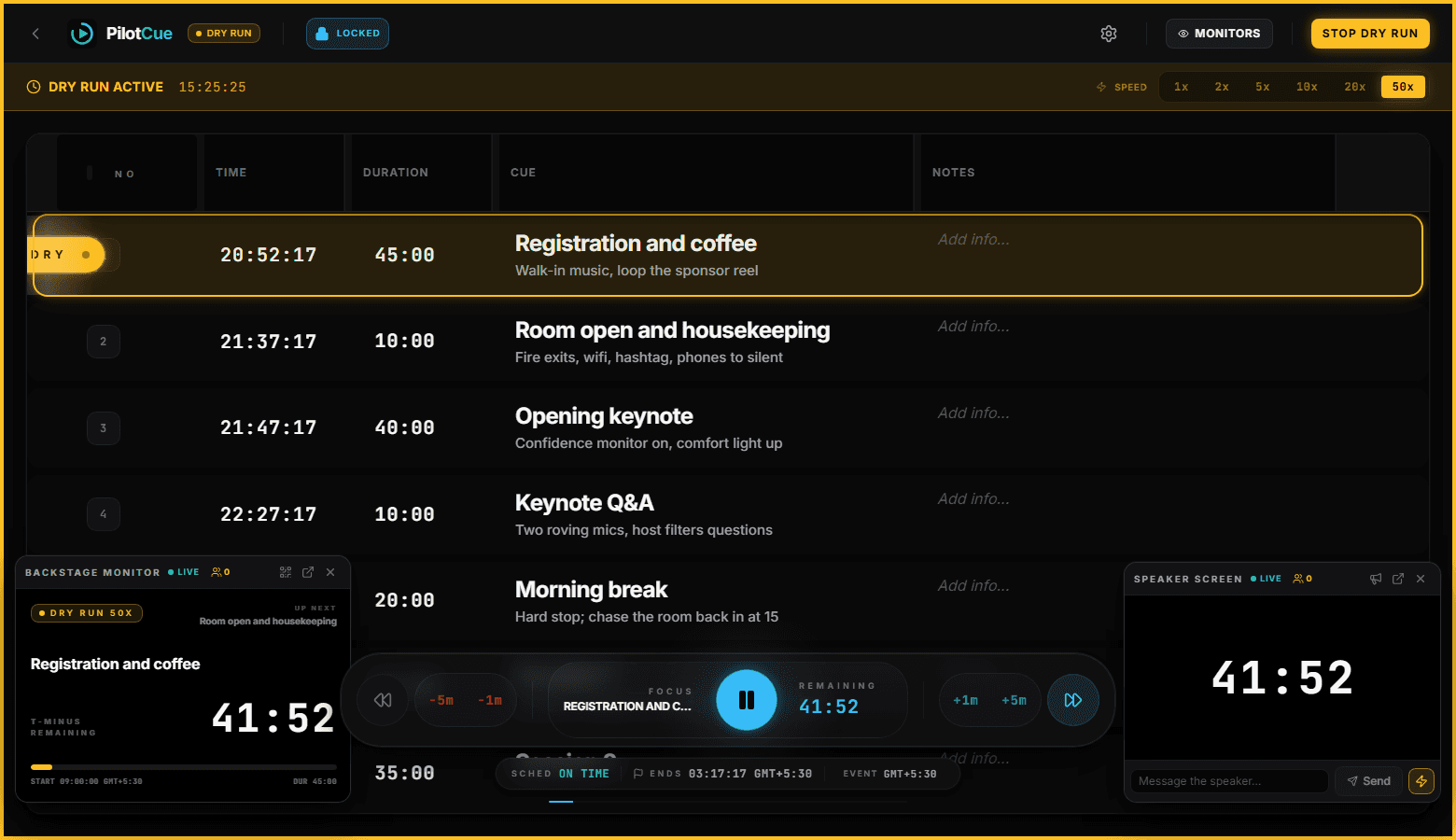
A dry run plays the whole show through at up to fifty times speed, without going on air.
Go live
One button. The command bar then handles previous, pause, next, and trimming the running cue.
Open the backstage monitor
Current cue, the next three, and the countdown, on a screen the room can see.
Open the speaker screen
One number for the person on stage, plus messages from the console when needed.
Read the report
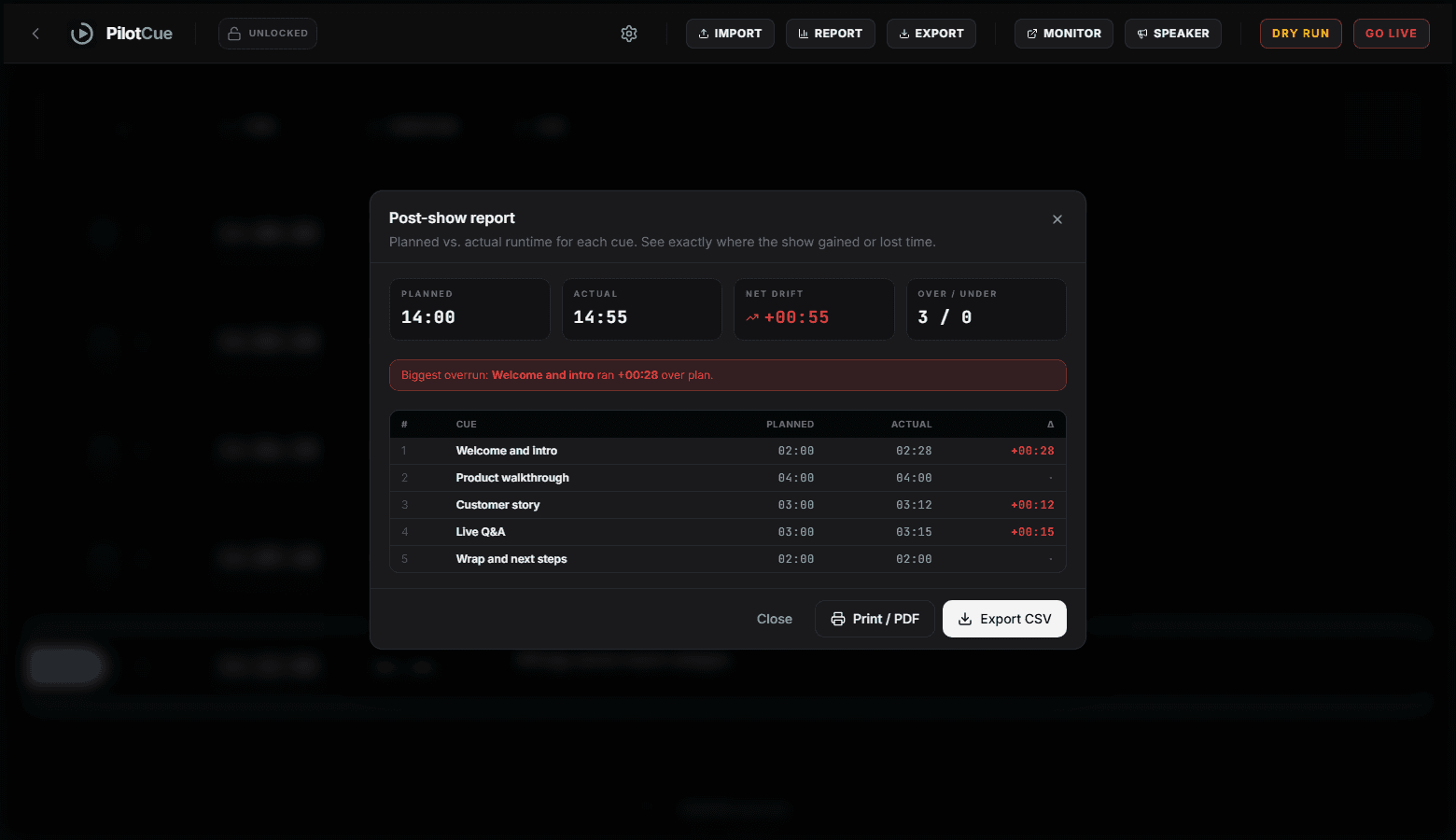
Stopping the show builds planned against actual for every cue.
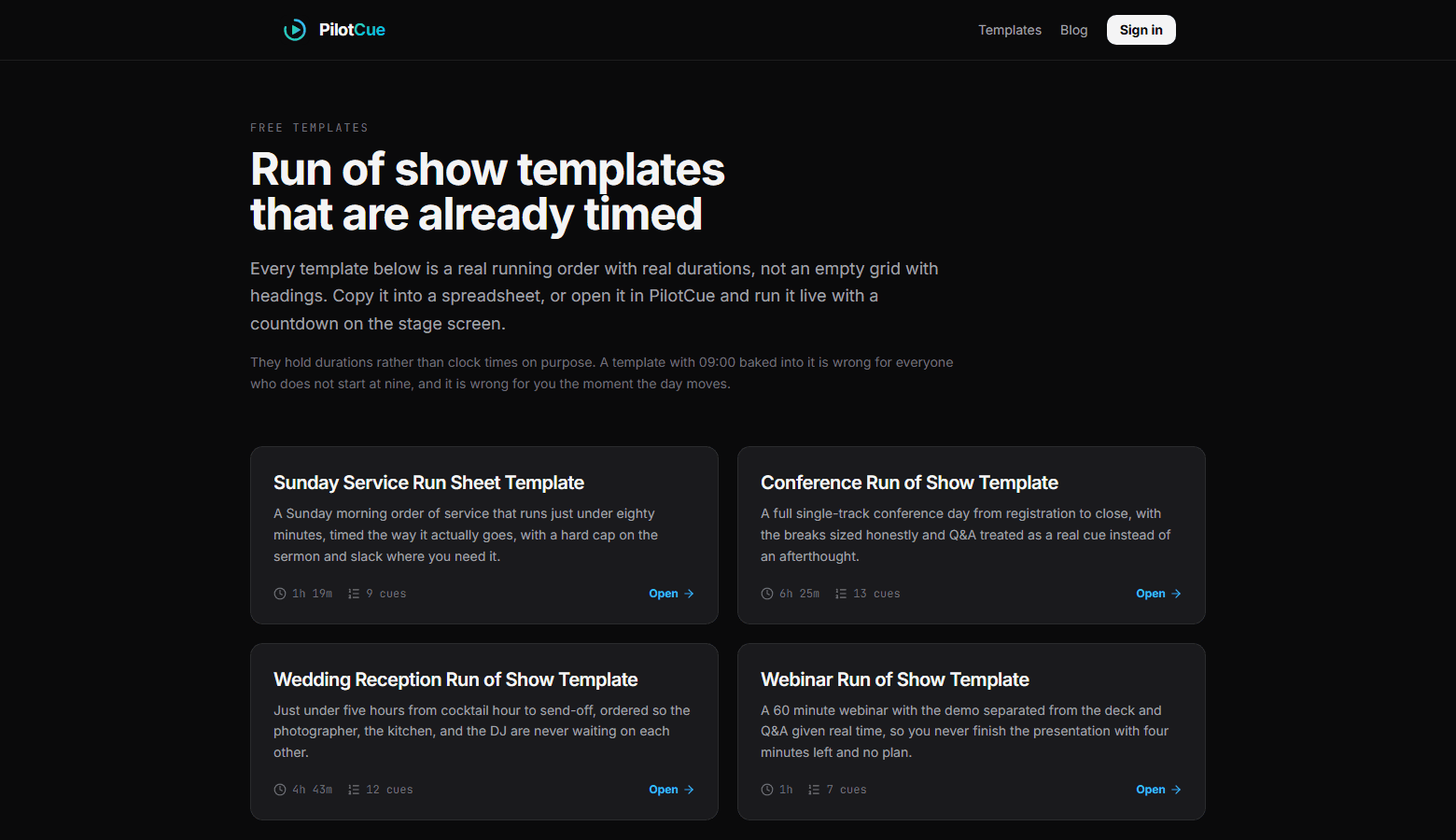
Step 1. Start from your sheet, or from a template
You do not have to author anything from scratch. If you already run from a spreadsheet, that is your input. If you are starting cold, there are four ready-made rundowns, and each one holds durations rather than somebody else's clock times, so it is useful whatever time your show starts.
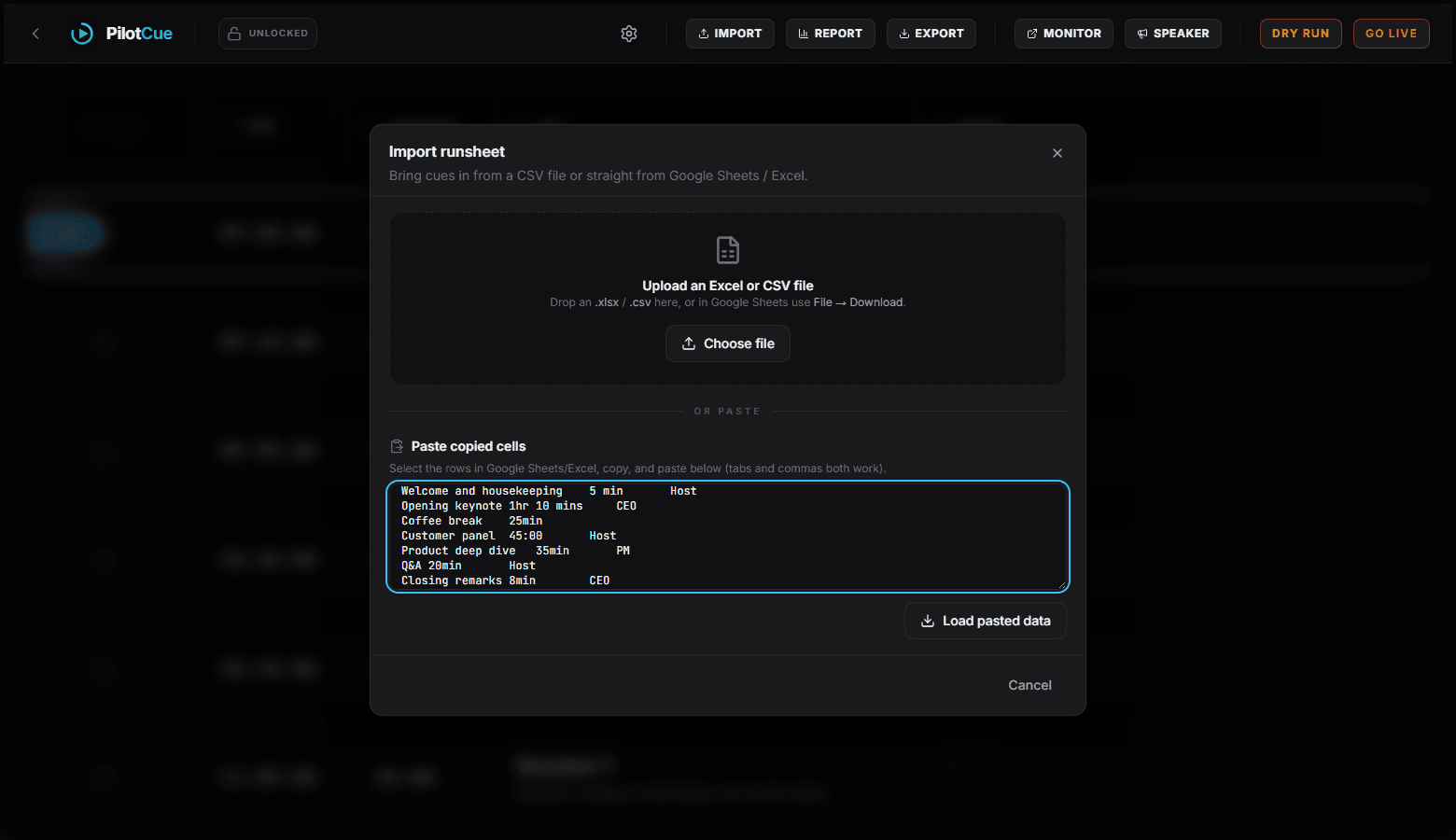
Step 2. Paste the rundown you already have
Select the rows in Google Sheets or Excel, copy, and paste. Tabs and commas both work, and you can upload an .xlsx, .xlsm, .xls, .ods or .csv file instead if that is easier. There is no template to conform to and no columns you have to rename first.
Step 3. Check the preview, and fix anything odd before it lands
This is the screen worth slowing down on, because it is where an import stops being a gamble. The columns are mapped for you and the blank start times are chained off the first one. Nothing exists yet, so this is where you fix it.
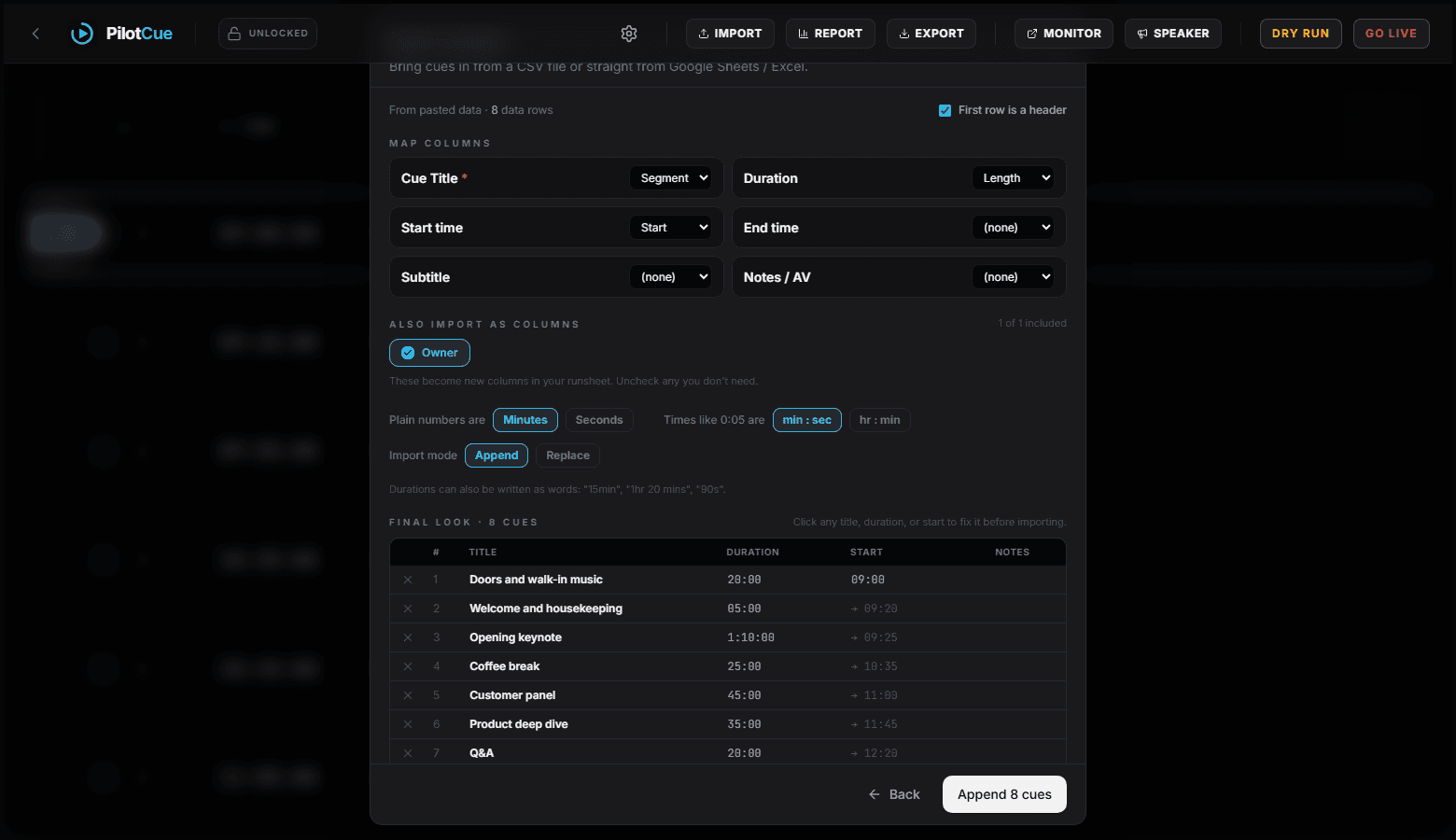
The import post walks through the messy cases: banner rows, durations written as words, blank cells, and columns we have never heard of.
Step 4. The console: one grid, one timeline
One grid, one timeline. Times, durations, cue titles and notes, and the row with the standby marker is the one that will go live when you start.
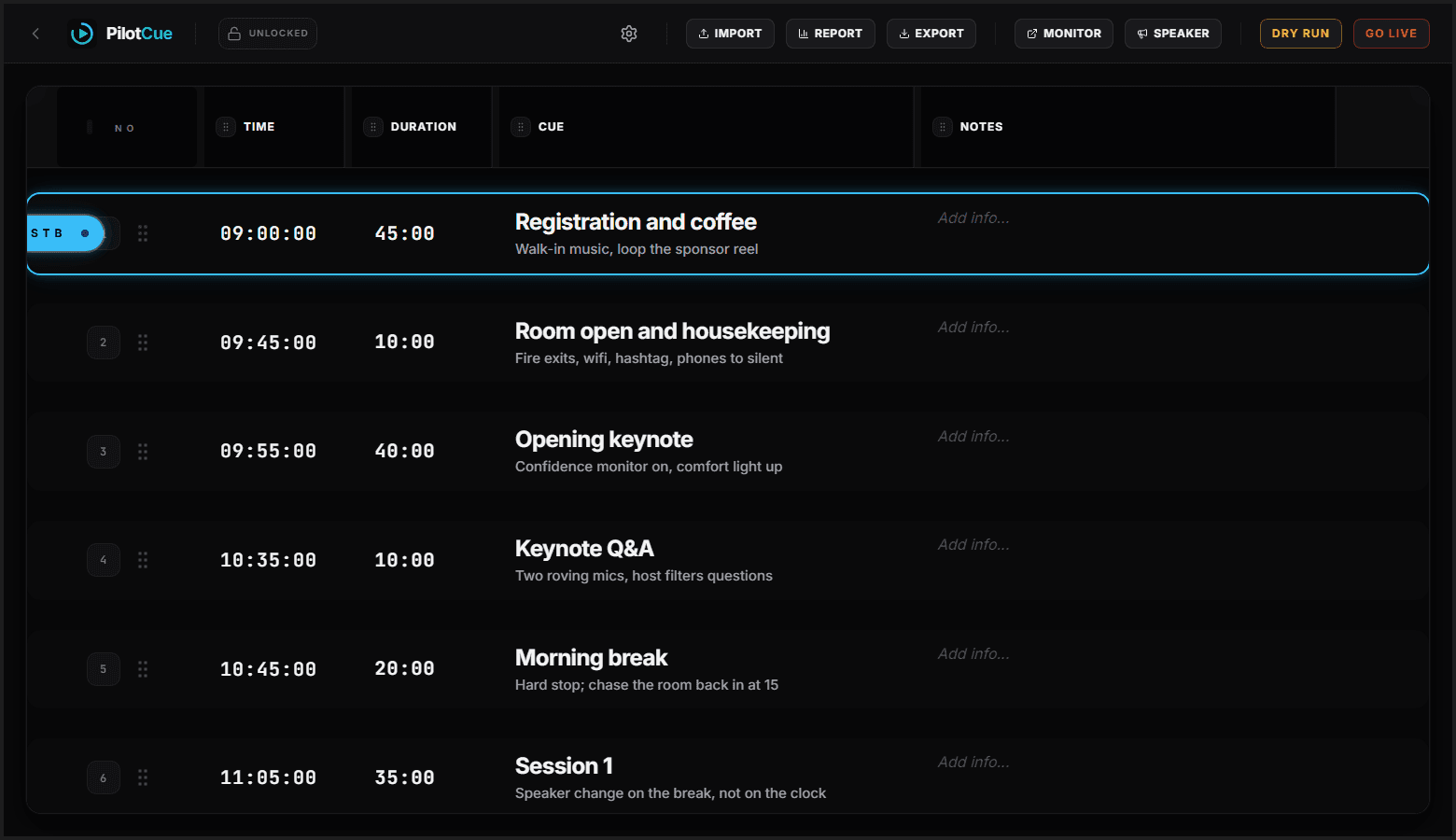
You can drag to reorder, insert a cue anywhere, add your own columns, and colour a row or the whole sheet. Two more things about the grid are worth knowing before your first show. Cue text is plain text everywhere, so what you type is exactly what the backstage monitor shows, and bold and italic are written as markers that render on every screen rather than as formatting that only survives in the console. And the lock in the header is there so a stray keystroke during a show cannot edit the sheet you are running.
Step 5. Rehearse the whole thing before anyone arrives
A dry run plays the show through without going on air, and you can run it at up to fifty times speed. A six and a half hour conference plays out in about eight minutes, which is long enough to find the segment that does not fit and short enough to do before the room fills.
Step 6. Go live
One button. The header turns green, the first cue goes live, and the command bar at the bottom is the only thing you need for the rest of the show: previous, pause, go to next cue, and trim or add a minute to what is running now.
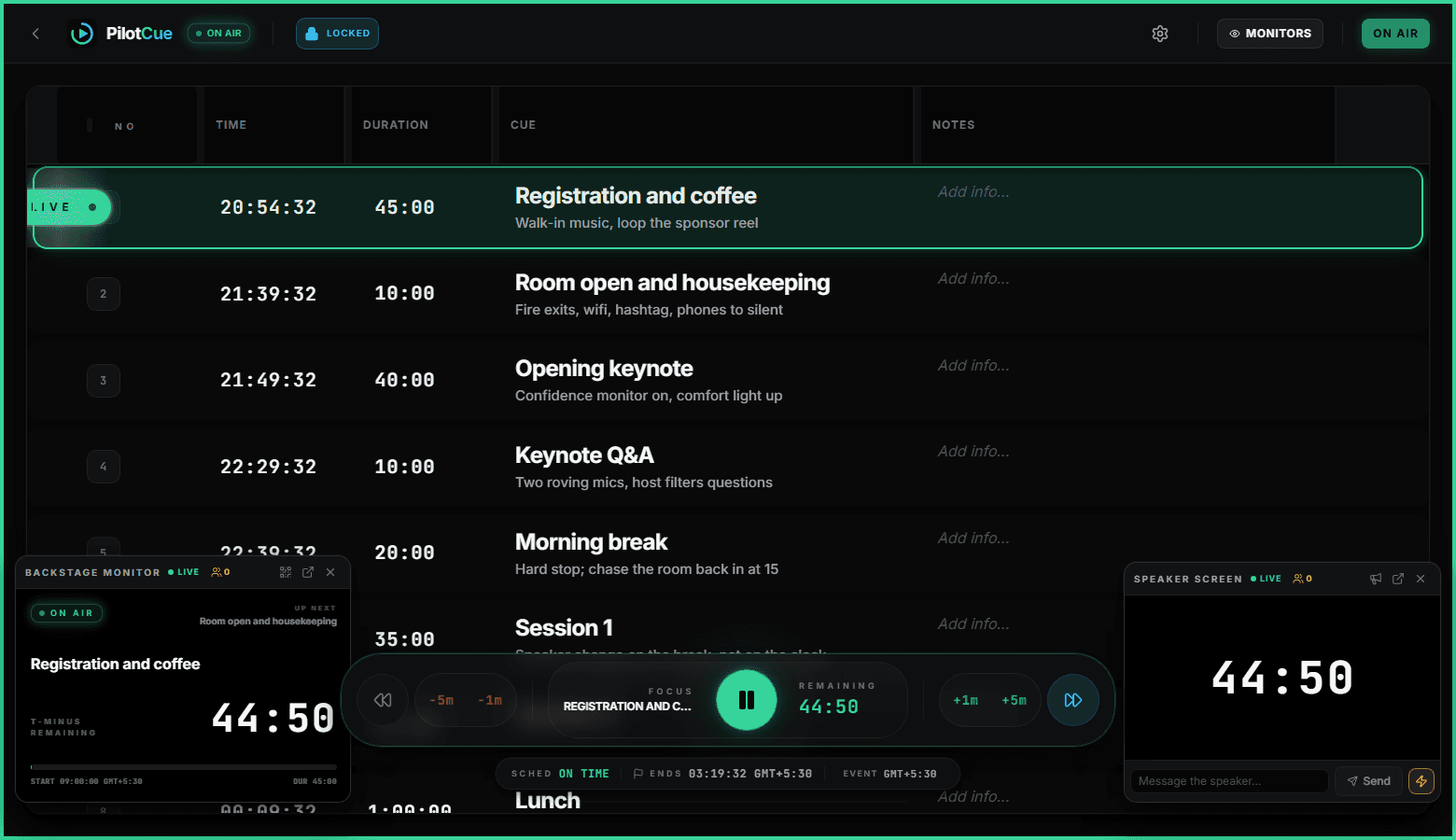
- The bar reads SCHED ON TIME, or how far ahead or behind you are, against the schedule you authored.
- Plus and minus one or five minutes changes the running cue, and everything below it moves.
- The playhead stays pinned a little above the middle of the screen, so the cue you are on does not wander off as the show progresses.
- Going live does not depend on the live connection holding. If the socket drops, the button still reflects what the server actually did, which is a specific thing we got wrong once and fixed.
Step 7. Set up the backstage monitor
The backstage monitor is a full-screen display for crew, front of house and the wings. Current cue, what is next and after that, and the countdown, large enough to read from across a room.
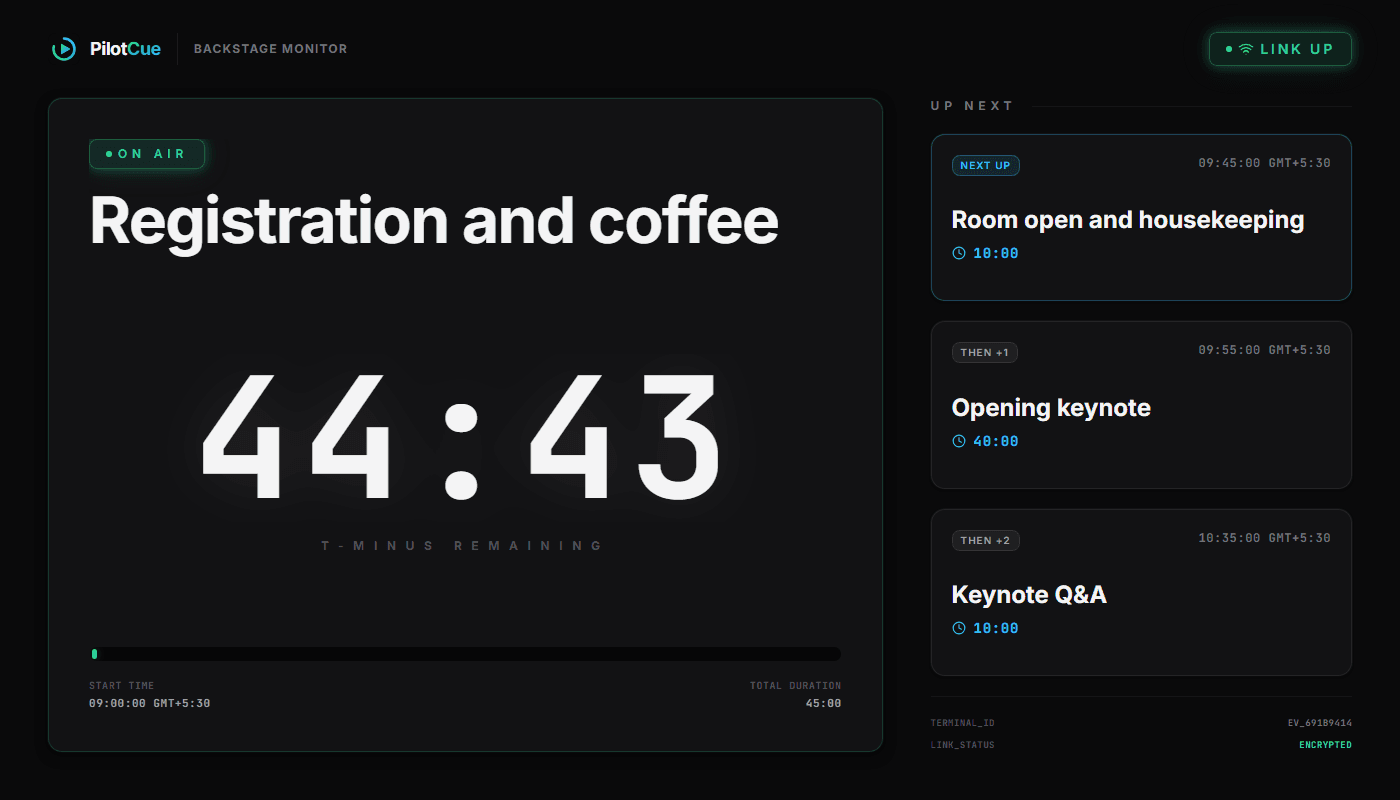
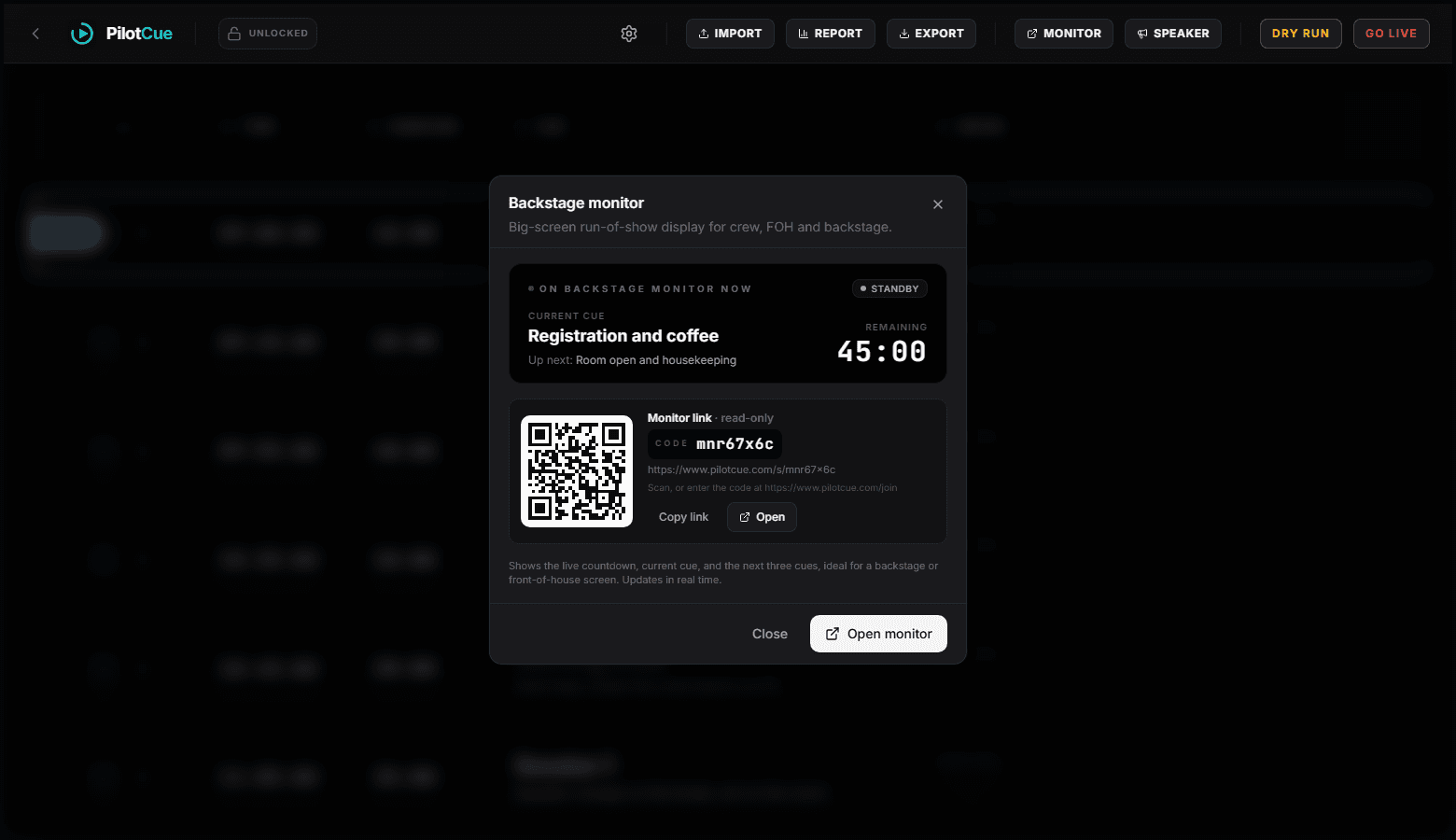
You can open it on any device without signing in. The Monitor button gives you a short read-only link and a QR code, which is the fastest way to get a rundown onto a volunteer's phone or a venue display you do not control.
Step 8. Set up the speaker countdown timer
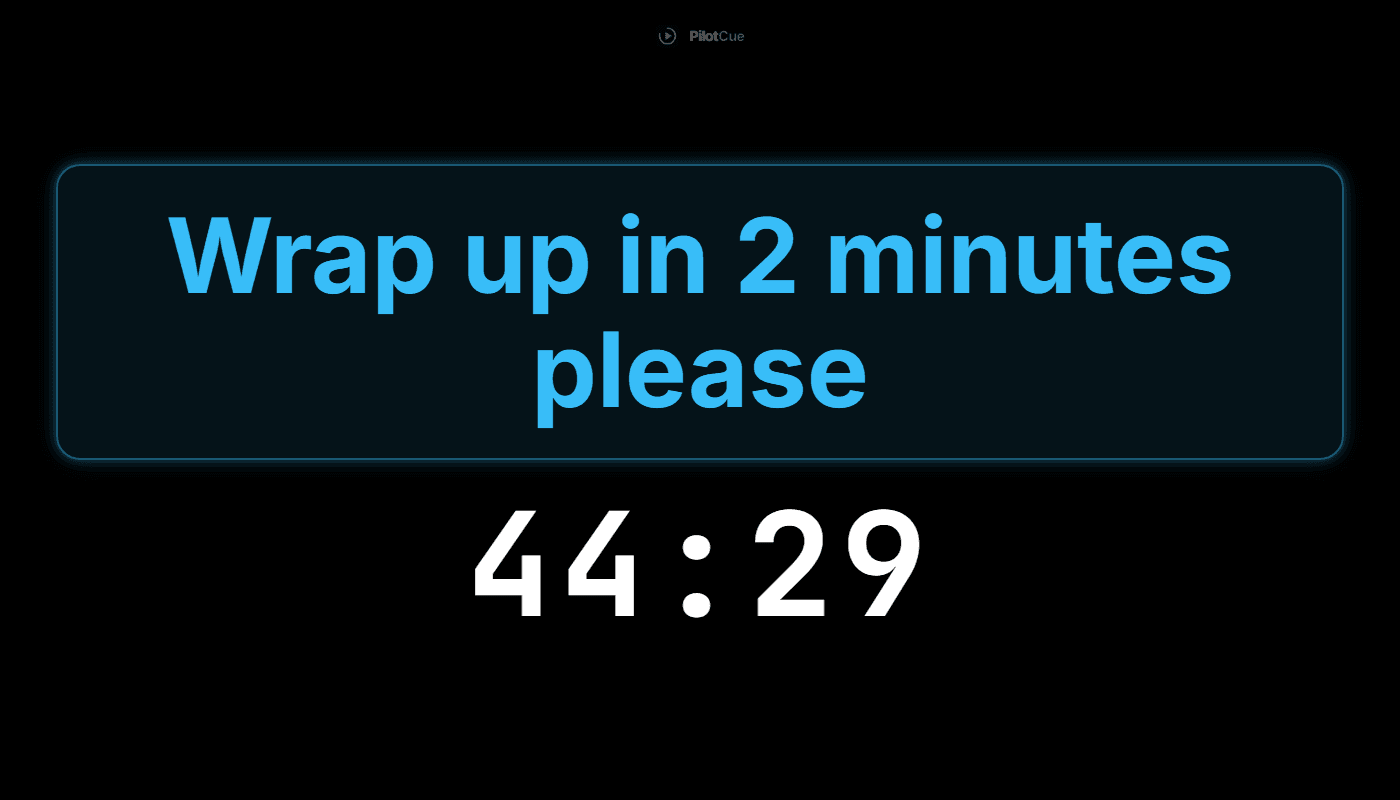
The speaker screen is deliberately almost empty. Somebody mid-sentence in front of a room can process one number, and it is how long they have left.
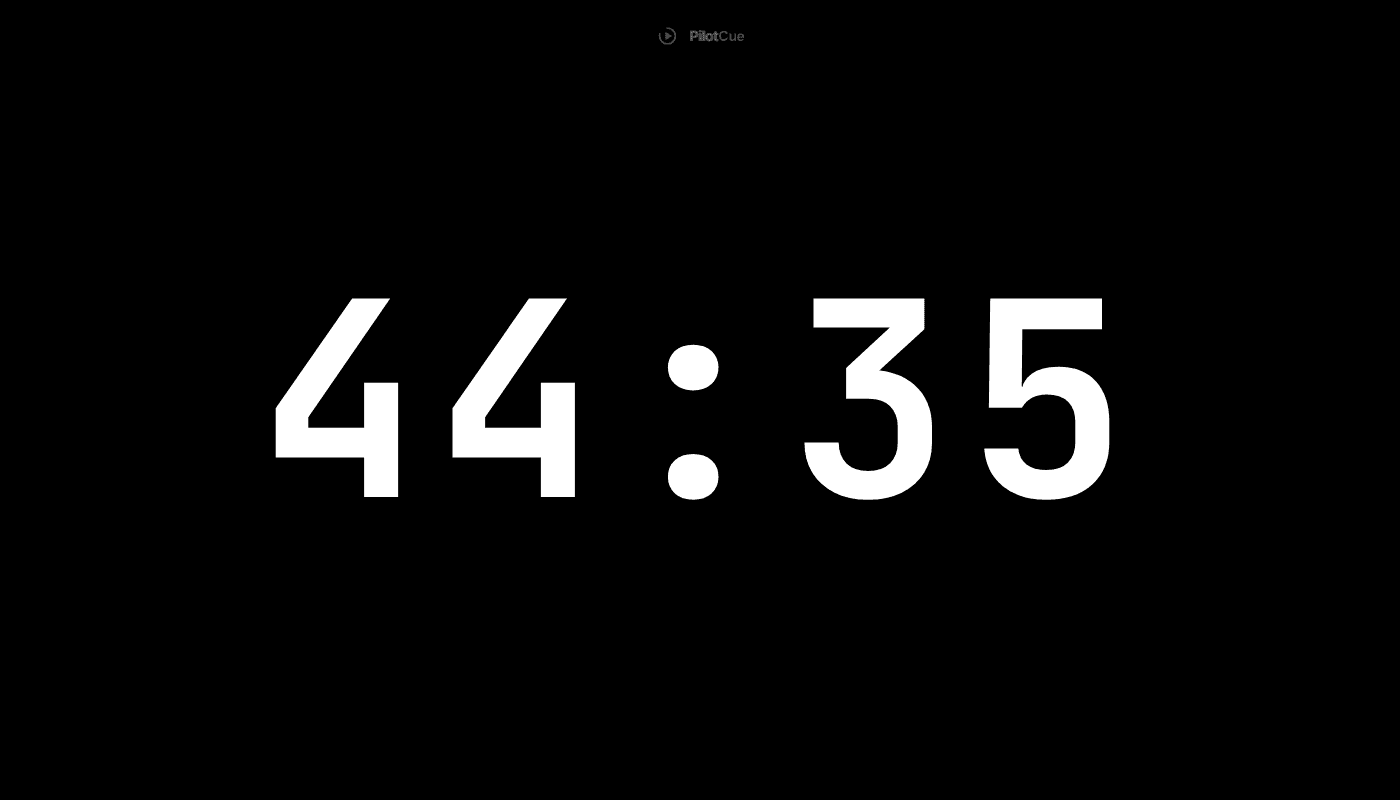
When you do need to say something, type it in the console and it appears on their screen. There is also a flash, for when the message needs to be noticed rather than read.
Step 9. Read what actually happened
When you stop the show, the report is already built. Exporting it as CSV or printing it to PDF is on the paid plans; reading it is not.
Things that are easy to miss
- Start show from here. Arm any cue while idle and the show begins there, which is what you want when the first twenty minutes have already happened without you.
- Jump to a cue mid-show, for when a segment is cut.
- Second console. Open the same show on another machine and both stay in step, so a handover mid-show does not need a conversation.
- A wake lock on the output screens, so a venue display does not sleep halfway through your keynote.
- Your own logo on the output screens.
- Timezones. The sheet is authored and displayed in the show's zone, and you can flip the command bar to your local time if you are not in the venue.
- Do the people I share the monitor link with need an account?
- No. The share link is read-only and works in any browser with nothing to install and no sign-in. They cannot change your rundown.
- What happens if the venue wifi drops mid-show?
- Going live and stopping the show apply locally and reconcile with the server, so the button reflects what the server actually did rather than the state of the connection. Advance and reorder failures during a show are still quieter than they should be, and we are fixing that. The output screens flag that the live link is down, so a number nobody should trust any more is labelled rather than passing as current.
- Will my spreadsheet formatting survive the import?
- The values do, including data-validation dropdowns from an .xlsx. Colours and fonts do not, deliberately: cue text is stored as plain text so that what you see in the console is exactly what the backstage monitor will show.
- Is there a free plan?
- Yes. The free plan covers two events with up to 25 cues each, which is enough to run a real show end to end before deciding anything.